Visitor Info Cards
Channel compatibility and limitations



Name
The name card can be used to get the Name of the visitor during the bot conversation. The name collected in this card will be updated as the visitor's name automatically in the SalesIQ portal.
- To add a name card to the bot's flow, click on the cardholder (+) icon to view the card gallery and select the Name card under the Visitor Info card section.
- Now enter the message that you want to show in the card and placeholder text.
- You can also make this card mandatory by unchecking the ' Allow visitor to skip ' option.
- Give a Hint text , default value where the name of visitors can be stored and them for further actions.
- Enter the error text that will be shown if the visitor hasn't entered a name. Click Save.
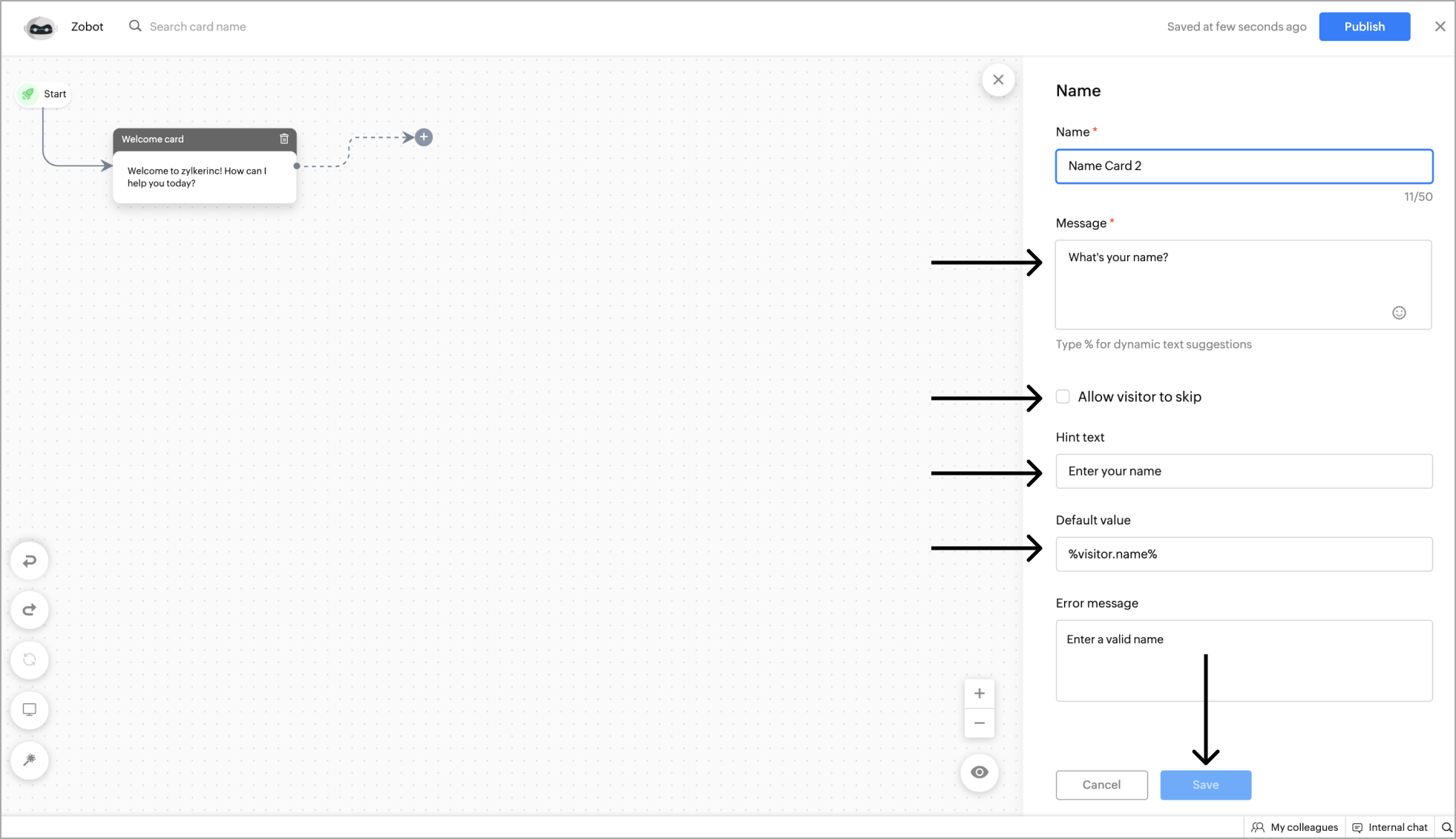
Example - Getting the Name as input from the website visitor.
The email card can be used to get the email of the visitor during the bot conversation. The email collected in this card will be updated as the visitor's email automatically in the SalesIQ portal.
- To get the visitor's email, click on the card holder (+) icon to view the card gallery and select the Email card under the Visitor Info card section.
- Now enter the message that you want to show in the card and placeholder text.
- You can also make this card mandatory by unchecking the 'Allow visitor to skip' option.
- Give a Hint text , default value where the email of visitors can be stored and them for further actions.
- Enter the error text that will be shown if the visitor hasn't entered an email. Click Save .
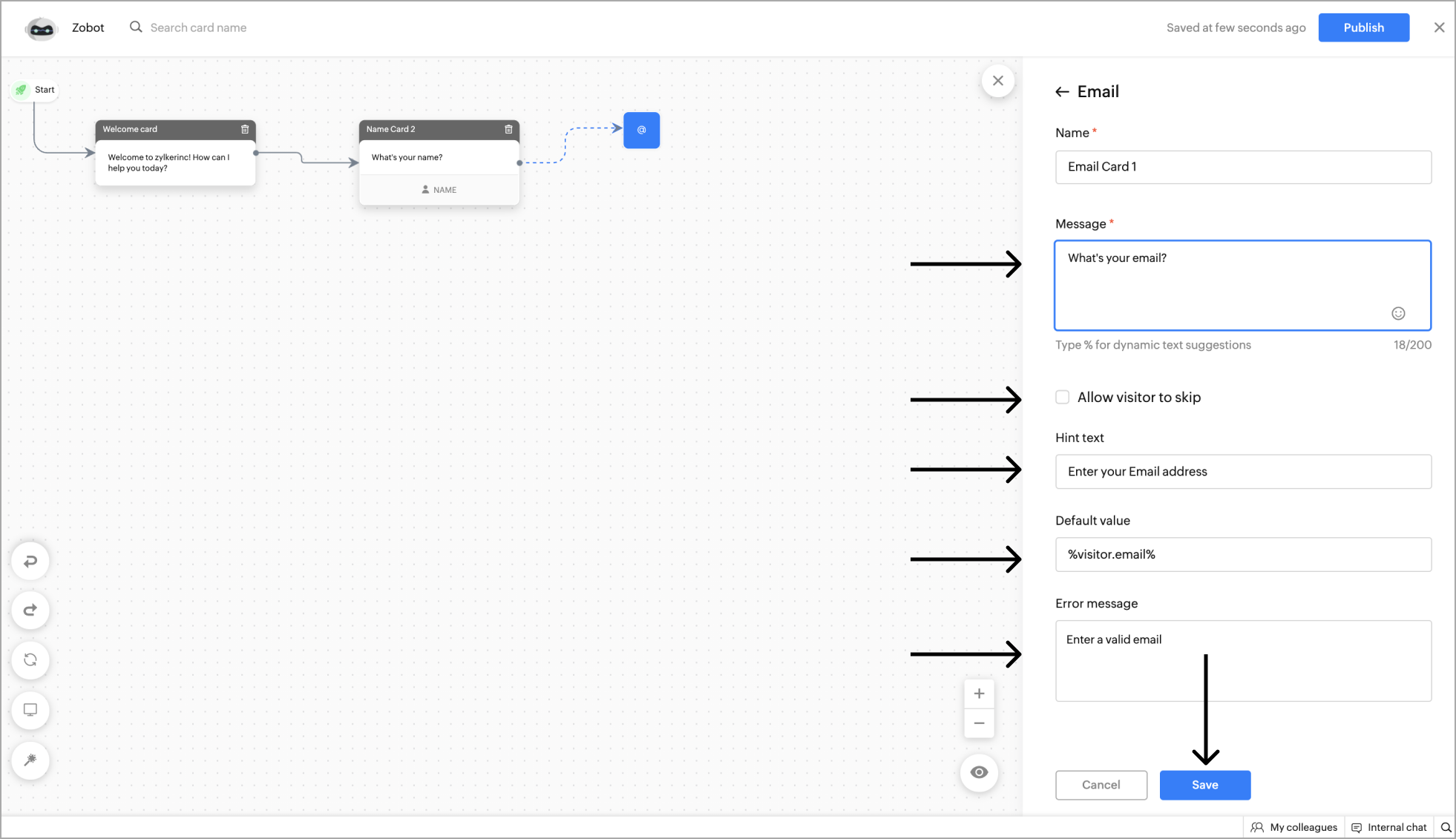
Example - Getting the Email as input from the website visitor.

The phone card can be used to get the visitor's phone/mobile number during the bot conversation. The number collected in this card will be updated as the visitor's phone number automatically in the SalesIQ portal.
- To get the visitor's phone number, click on the card holder (+) icon to view the card gallery and select the Phone card under the Visitor Info card section.
- Now enter the message that you want to show in the card and placeholder text.
- Specify the Country code and you can also make this card mandatory by unchecking the 'Allow visitor to skip' option.
- Give a Hint text , default value where the name of visitors can be stored and them for further actions.
- Enter the error text that will be shown if the visitor hasn't entered a valid phone number. Click Save .
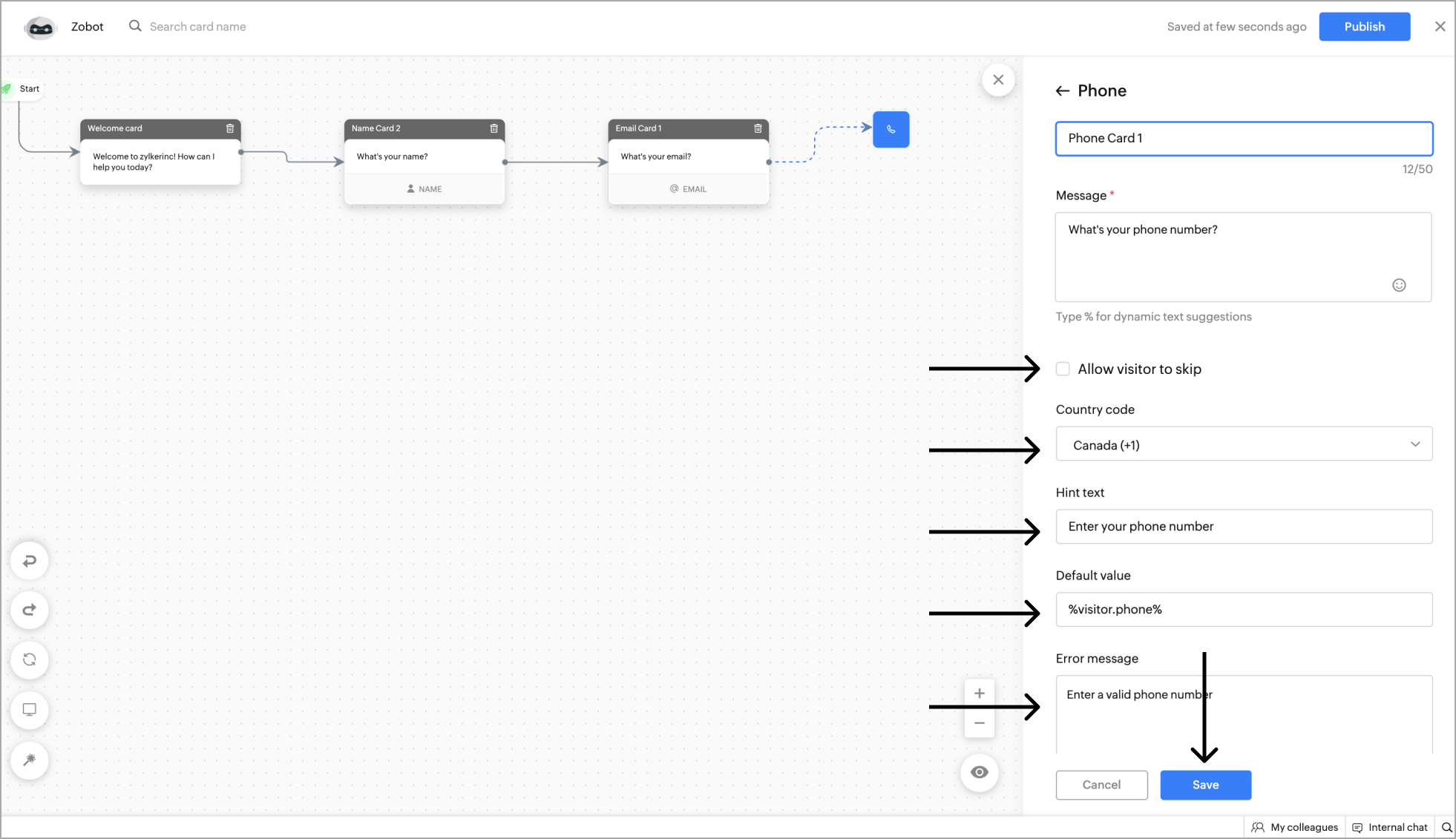
Example - Getting the Phone number as input from the website visitor.
Company
This card can be used to get the company's name.
- To add the Company card to the flow, click on the cardholder icon (+) and choose Company card under the Visitor Info card section.
- Now, Specify a name for the card, add the reply text in the message input field, and click Save. You can also add card images or attachments to enrich your response.
- After clicking Save, you can view the card on the bot builder page.
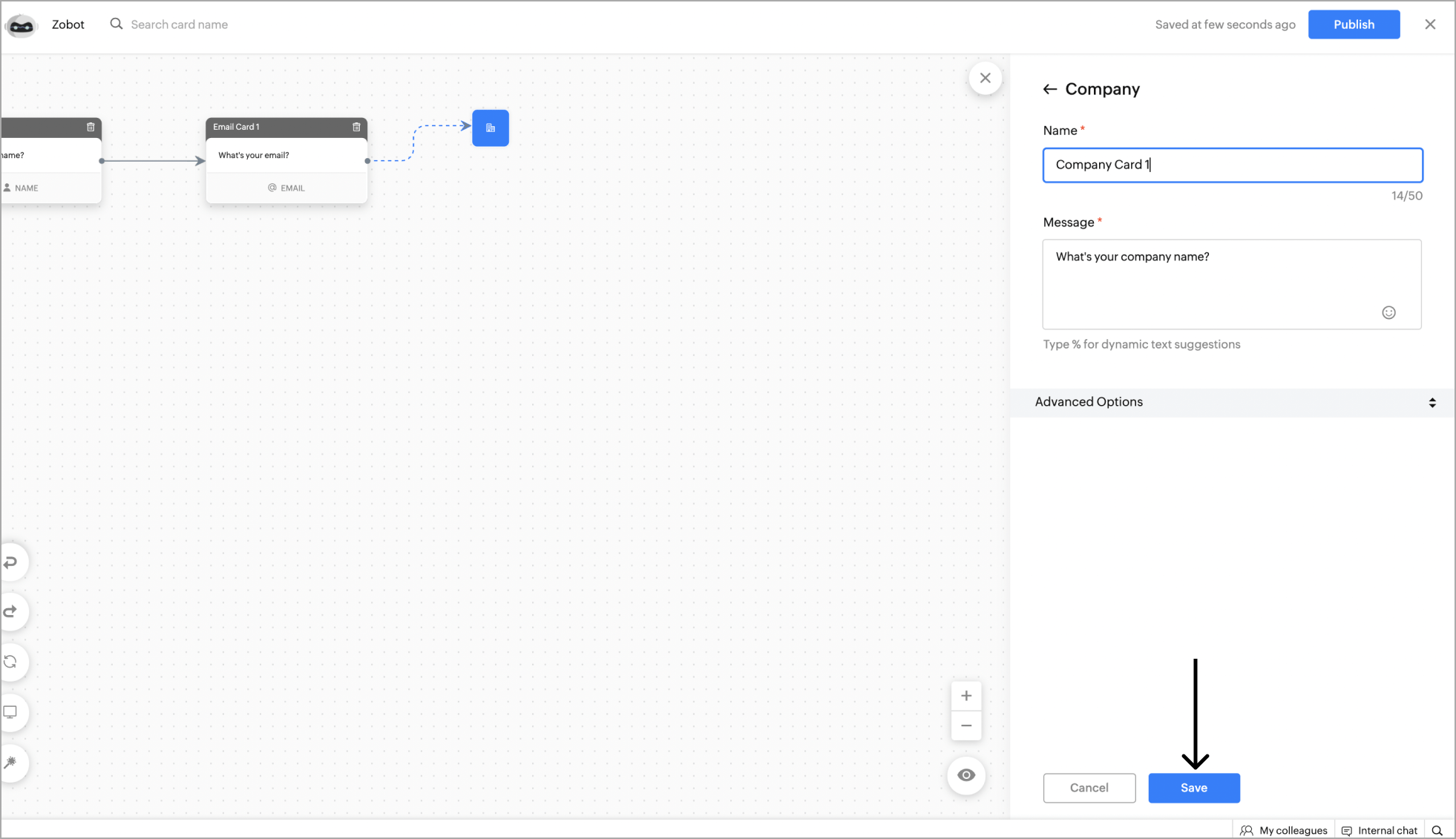
Example - Getting the Company name as input from the website visitor.
Visitor Fields
Visitor fields card can be used to ask a custom questions to your visitors.
- To collect other data of the visitor, click on the card holder (+) icon to view the card gallery and select the Visitor fields card under the Visitor info card section.
- Now, give a name to the card, enter the message that you want to show on the card, and placeholder text. You can make this card mandatory by unchecking the Allow visitor to skip option.
- Choose the type of data you want to get in the Choose type section.
Data types:
- Email : To recieve any email address.
- Phone : To recieve any phone number.
- URL : To get URLs from the visitor.
- Number : To get the specific numeral values.
- String : To get content in text format.
- Password : To get the password from the visitors. Note : The password will be masked won't be visible anywhere in the UI.
- After selecting the data type, you can update the collected data to the visitor field and the bot's context . Click Save .
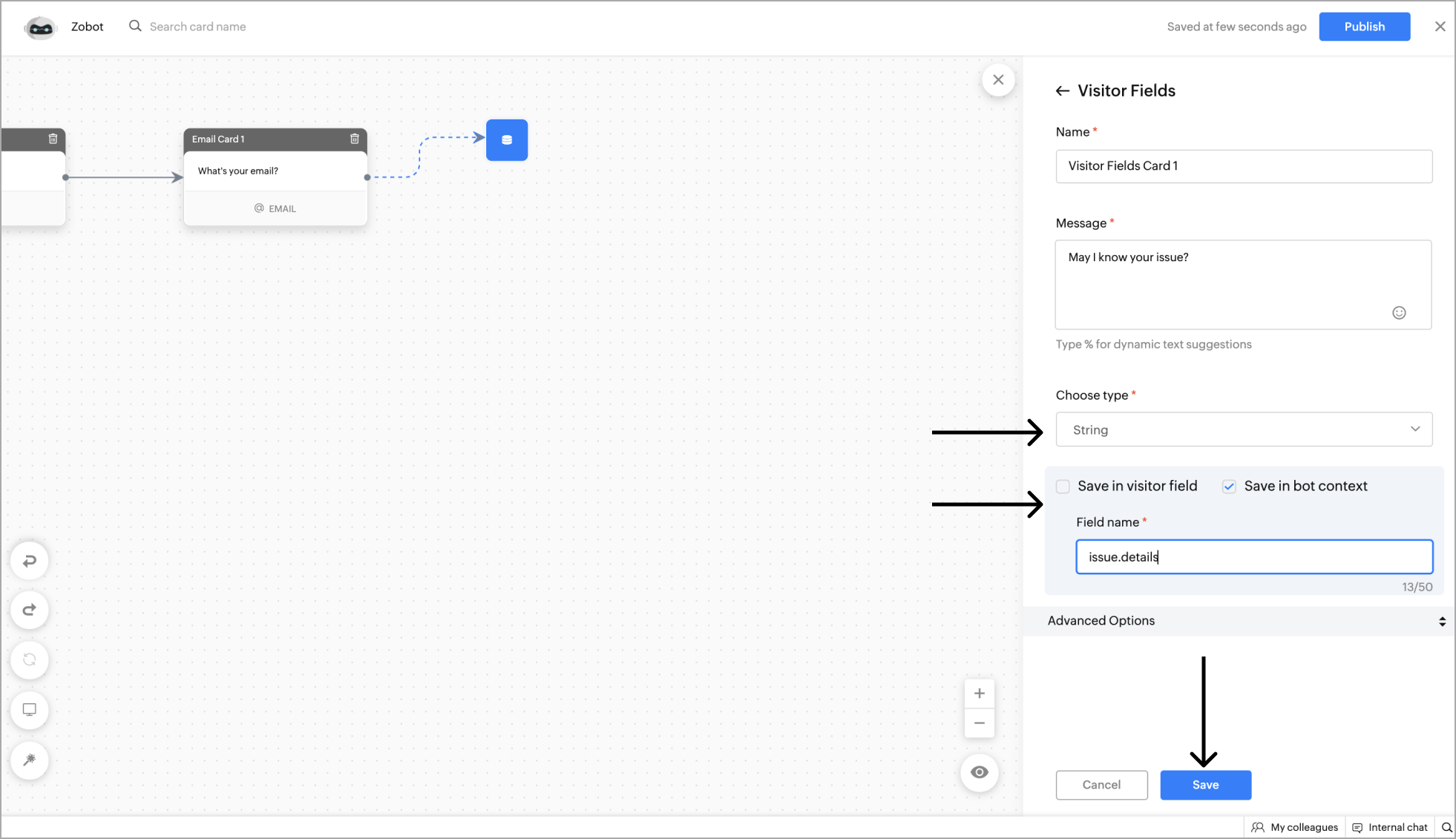
Example - Getting the ticket ID from the website visitor using visitor fields.
Related Articles
Integration Cards
Integration cards allow integration-related operations like mail subscription, ticket creation, lead creation, etc. These cards will work based on the configurations set under the product integration settings. Add Lead This card can be used to ...AI Cards
AI cards are used to perform artifical intelligence related tasks. Currently, answer bot engine and the ChatGPT (OpenAI) are available. Channel compatibility and limitations All AI card are supported in Facebook, Instagram, WhatsApp, Telegram, and ...End Cards
End cards are used to end or conclude the chat. All end cards are supported in Facebook, Instagram, WhatsApp and Telegram. Block Visitor The block visitor card allows you to block the visitor. To add this card to your bot's flow, click on the card ...SalesIQ for Zoho Forms
Zoho forms is a software solution that let's you create visually appealing forms easily with a no-code online form builder, for all your data collection needs. Integrating Zoho SalesIQ with Zoho Forms will allow you to receive the data collected on ...Importing and Exporting Chatbots (Beta)
SalesIQ offers a robust import and export functionality that allows quick and hassle-free chatbot migration between accounts or portals. With this functionality, you can export a bot from one SalesIQ portal and import it into another, enabling ...